
Block Editor
M Chart includes a block for the WordPress block editor. It provides the same display options as the shortcode via the block sidebar.
Adding the Block
In the block editor, open the block inserter and search for M Chart — the block is titled M Chart. Insert it to get started.
Selecting a Chart
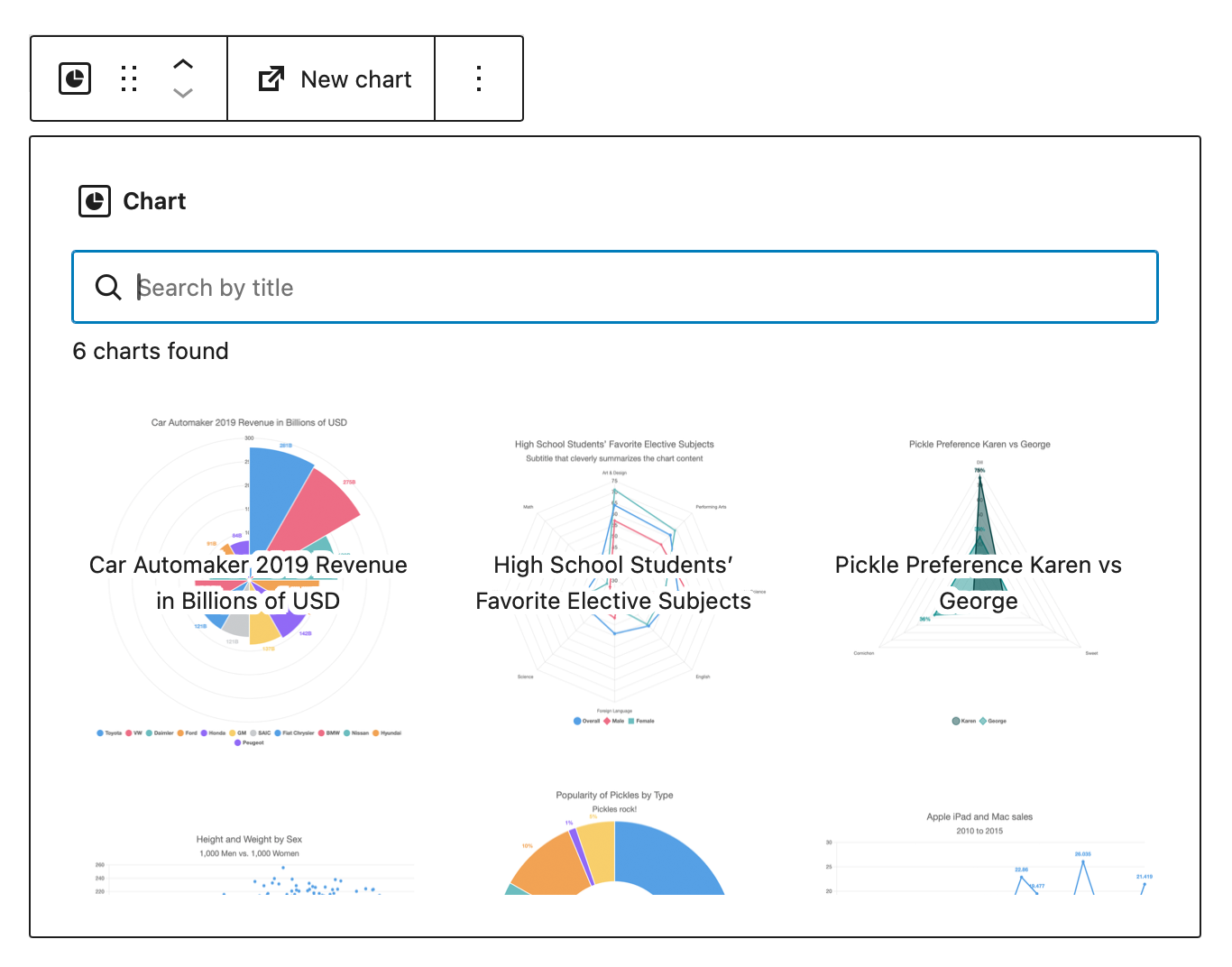
When first added, the block displays a chart picker:
- A searchable list of all published M Chart posts is shown
- Scroll down to load more charts
- Use the New chart toolbar button to open a new chart edit screen in a new tab
Tips
Only published charts appear in the picker. Draft or pending charts will not be listed.
Click any chart in the list to select it.
Working with a Selected Chart
Once a chart is selected the block shows a preview using the image versions auto generated by M Chart. Two toolbar buttons are available:
- Edit chart — opens the chart's edit screen in a new tab
- Replace — returns to the chart picker to select a different chart
Display Settings
The block sidebar includes a Display settings panel with one option:
Show
Controls how the chart is rendered on the front end.
| Value | Description |
|---|---|
| Chart | Interactive JavaScript chart (default) |
| Image | Static image |
| Table | Chart data rendered as an HTML table |
These correspond directly to the show parameter of the [m-chart] shortcode — the block renders by generating a shortcode internally.