
CSV Import & Export
M Chart supports importing and exporting chart data as CSV files.

Exporting
Click the Export button below the spreadsheet to download the current chart data as a .csv file.
Tips
The Export button hides itself while a CSV import is being staged or is actively running. It returns as soon as the import finishes (or you cancel it).
Importing
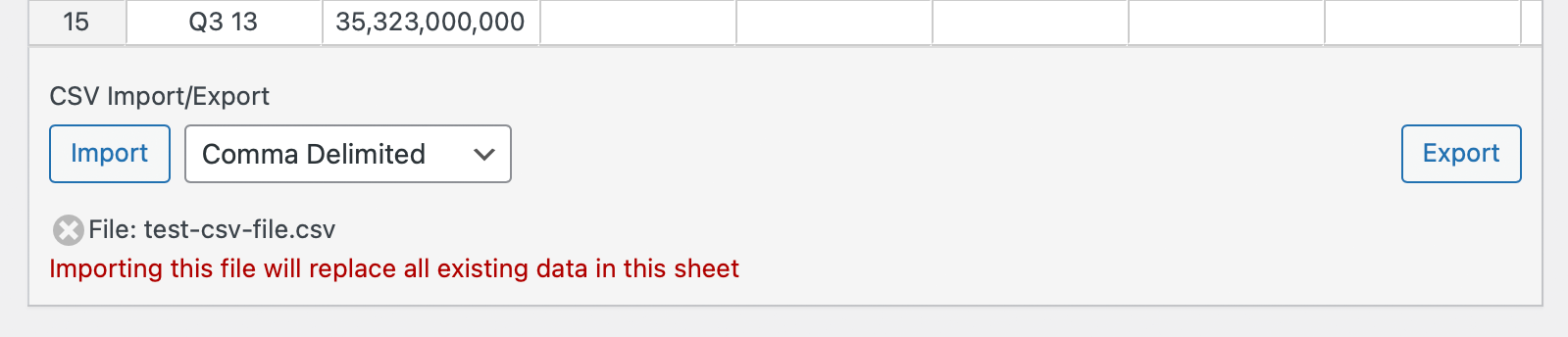
Importing replaces every cell in the active sheet with the contents of the CSV. The flow is intentionally two-stage so you can confirm before anything is overwritten.
- Click
Select Filebelow the spreadsheet and choose a.csvfile from your computer. - The
Select Filebutton is replaced by a confirmation row containing anImportbutton, a delimiter dropdown, and a ×Cancel Importbutton. A warning under the file name reads: Importing this file will replace all existing data in this sheet. - If the file uses a non-default delimiter, change the dropdown to
Comma Delimited,Tab Delimited,Space Delimited, orSemicolon Delimitedfor this import. - Click
Importto proceed, or × to back out without changing the spreadsheet. - While the upload runs, all CSV controls are replaced by an
Importing filestatus. When the import completes the buttons return.
Default delimiter
The default delimiter applied to new imports is set in Charts → Settings. The dropdown in the import confirmation row only overrides it for the current import.
Tips
- The first row and/or first column of your CSV become the chart labels, depending on your data format. See Creating a Chart for how label detection works.
- Values with currency symbols (
$,£) or unit suffixes (%,°C,K,M,B,T) are parsed correctly — the symbol is preserved in tooltips while the numeric value is used for the chart.