
External Data Sources
External Data Sources let a chart pull its data from a remote location instead of being typed into the spreadsheet by hand. Use this when your numbers live in a Google Sheet, a CSV file somewhere on the web, or a MySQL database, and you want the chart to keep itself up to date.
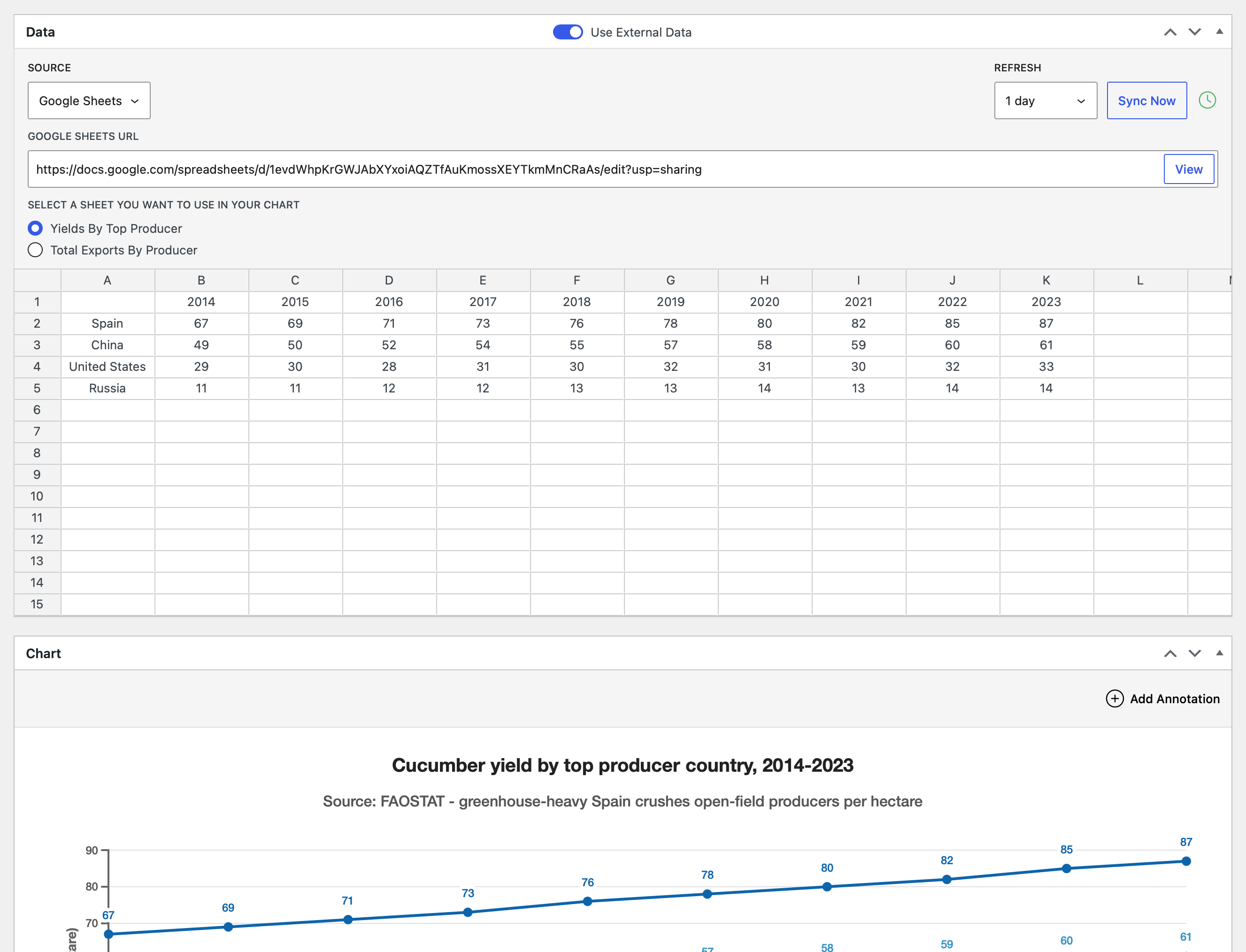
Overview
There are four source types:
- Google Sheets — connect a chart to a sheet by URL.
- Remote CSV — connect a chart to one or more CSV files served over
http://orhttps://. - Local MySQL — run read-only SQL queries against the WordPress database itself.
- Remote MySQL — run read-only SQL queries against another MySQL server.
The MySQL sources have their own page — including their administrator-only security model — at MySQL Data Sources.
Once a chart is connected, it re-fetches data on demand (a Sync Now button) and on a schedule. While External Data is active, the chart's spreadsheet is locked for direct editing — every successful sync overwrites whatever is in it.
Setup
Cache period default
Open Charts → Settings. Under the External Data section you'll find Default Cache Period — the schedule charts use when they don't override it themselves. Choices range from 30 minutes to 3 days. The default is 1 day.
Google Sheets service account
A Google service account is needed to read private Google Sheets. This is a one-time, plugin-wide setup. Public sheets work without it.
- Create a Google service account and download its JSON key file.
- On Charts → Settings, find the Google Sheets — Service Account section. Paste the entire contents of the JSON key file into the
Service Accounttextarea. - Save the settings page.
- The section now shows the service account's email address, with a
Copybutton next to it. - In Google Sheets, share each sheet you want M Chart to read with that email address.
Vieweraccess is enough.
To remove or replace the credentials, click Clear Service Account. The textarea reappears so you can paste a new JSON. Until you do, private sheets won't sync.
Tips
There is no "Test Connection" button. The first time you sync a chart against a private sheet, a successful sync confirms the service account is working.
Connecting a chart to an external source
- Open the chart in the WordPress editor.
- In the Spreadsheet meta box, switch the
Use External Datatoggle on. - Pick
Google Sheets,Remote CSV,Local MySQL, orRemote MySQLfrom theSourcemenu. - Fill in the source-specific fields (see below).
- Save the post.
Warning
While External Data is active the spreadsheet inside the meta box is read-only. Each successful sync overwrites it — including sheet count, sheet names, and every cell. Anything you typed in by hand before connecting will be replaced.
Turning Use External Data back off clears all source state for that chart — URLs, tab selections, and sync history are reset.
Cleaning up synced data
Since the spreadsheet can't be edited while External Data is active, use Smart Data Selection to keep junk rows or columns from the source out of the chart. For sources that grow over time, use Auto mode or turn on manual mode's Automatically include new rows and columns option.
Using a CSV source
Paste a public CSV URL into the CSV URL field and give it a name. The URL must use http:// or https://; URLs that need a login or API key are not supported.
For single-sheet chart types, you can connect one CSV URL. For multi-sheet chart types you can connect up to 25 URLs. Each URL becomes one data set in the chart. Use the Add CSV URL button to add another row, and the X icon to remove one.
The CSV format is the same as M Chart's built-in CSV Import, and uses the delimiter set in Charts → Settings → CSV. Keep your header row in the file — M Chart treats the first row and column as labels just like a manually-imported CSV.
A View button appears next to a valid URL so you can open it in a new tab to confirm it returns CSV.
Using a Google Sheets source
Paste the share URL of a Google Sheet into the Google Sheets URL field — anything that looks like https://docs.google.com/spreadsheets/d/… will work. The View button opens the sheet in a new tab.
If the sheet is private, share it with the service account email shown on the M Chart settings page. Viewer permission is enough.
If the sheet is public ("Anyone with the link → Viewer"), it can be read without a service account. Tab listing and selection does not work in this mode, so a service account is recommended.
When the sheet has more than one tab, a tab selector appears:
- On a single-sheet chart type, you'll see radio buttons — pick the one tab you want to use.
- On a multi-sheet chart type, you'll see checkboxes — each selected tab becomes one data set in the chart.
The whole tab is read every time. There is no cell-range selector.
Tips
If you don't have a service account configured, a yellow warning appears at the top of the Google Sheets tab. You can ignore it and use a publicly-shared sheet; you just won't get tab selection or private-sheet access.
Syncing
Manual sync
Click Sync Now next to the Refresh dropdown. The button changes to Syncing… while it runs. When it finishes, the status icon updates:
- A clock icon means the last sync succeeded — hover to see when.
- A warning triangle means the last sync failed — hover to read the error message.
Automatic sync while editing
Editing the URL or changing a Google Sheets tab selection automatically triggers a sync about half a second after you stop typing. There is no button to click.
MySQL sources are the exception — queries never run automatically while editing. See Syncing on the MySQL page.
Scheduled sync
Each chart has its own Refresh dropdown that overrides the global cache period for just that chart. Options match the global setting (30 minutes through 3 days).
Scheduled syncs use WordPress's built-in cron, which fires when someone visits your site. Sites with very little traffic may not refresh on time unless a real system cron is configured to drive WP-Cron. If a scheduled sync fails, the chart keeps showing the last good data and the next sync is still booked.
Status indicators
The Charts list table has a Sync column that shows one of:
OK— the last sync succeededError— the last sync failed (hover for the message)Never— the chart has External Data enabled but has not synced yet—— the chart is not using External Data
The chart edit screen shows the same OK / Error status next to the Sync Now button.
Troubleshooting
| Error message | What to do |
|---|---|
Could not extract a Sheet ID from the provided URL | Paste a real Google Sheets share URL. |
Google Sheets returned HTTP …; the sheet may not be publicly accessible | Share the sheet with the service account email, or set sharing to "Anyone with the link". |
Google Sheets API returned an error | Confirm the sheet is shared with the service account email and that the URL is correct. |
The requested sheet tab could not be found | The tab was renamed or deleted in Google Sheets. Re-pick a tab. |
No service account credentials configured | Paste your service account JSON in Charts → Settings. |
Could not parse the service account private key | Re-download the JSON key from Google Cloud Console and paste it again. |
CSV fetch returned HTTP … | The URL is wrong or the source is offline. Verify the URL loads in a browser. |
CSV file was empty | The URL responded successfully but returned nothing. Check that the source is actually producing CSV. |
Limits and gotchas
- A chart can connect up to 25 CSV URLs.
- Every external fetch has a 15-second timeout. Slow sources may not finish in time.
- Turning
Use External Dataoff clears all source state for that chart — URLs, tab selections, and sync history. - On WordPress multisite, each subsite needs its own service account JSON.
- Duplicating a chart copies its External Data configuration. Both copies will sync independently against the same source.
- Very large sheets or CSV files may be slow to fetch and parse, and can hit your site's PHP memory limit.
- Sites with no traffic and no system cron won't auto-refresh on schedule. Use
Sync Nowto refresh manually, or set up a real cron entry. - If Smart Data Selection is in manual mode without
Automatically include new rows and columns, rows or columns added by a sync stay out of the chart until you review the selections.